
Published March 21, 2023 · Updated July 30, 2025
The Java edition of Minecraft is known for its amazing Minecraft mods and the amazing ways they allow you to customize your world. But now, Minecraft Bedrock is joining the fight too with its very own editor mode. This is an official tool that you can use to edit your world, create massive structures, and even make custom maps within Minecraft. Its potential is truly limitless as long as you know how to make the most out of it. So, without a moment to waste, let’s learn how to install and use Minecraft Bedrock Editor right now.
Minecraft Bedrock Editor
We are only going over the basics and the main features of the Minecraft Bedrock Editor. You can use the official documentation (here) to dive deeper and learn about the technical side of this powerful tool. Moreover, it is still in the beta testing phase. So, all the features and mechanics of this tool are subject to change in the final release.
What is Minecraft Bedrock Editor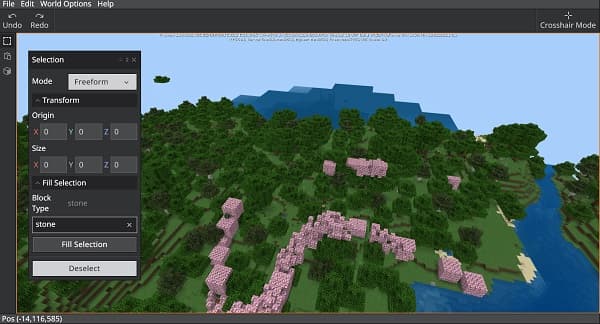
The Minecraft Bedrock Editor is an upcoming in-game world editor for Minecraft Bedrock. It allows you to freely edit any world in the game with a set seed using a variety of options. The editor works like a 3D map maker tool that you can use to place, replace and modify blocks. It uses Minecraft Bedrock as the base to load the world and gives you additional add-ons to completely transform it.
Features of Bedrock Editor
As a map maker, the Minecraft Bedrock Editor is a very powerful tool. It consists of the following features:
- Palettes of blocks, commands, and objects
- Camera controls and modes
- Selection and drawing tools
- World generation and seeds
- Advanced scripting
- Autosave
- World exporting/importing
- Commands
- Multiplayer support
- Education-focused features
- Custom resource packs
- Integration with other Microsoft products
Minimum Requirements
You need to fulfill the following basic requirements to run the Minecraft Bedrock Editor:
- A copy of Minecraft Bedrock
- Windows 10
- Memory: 4 GB
- Graphics Card: Intel HD 4000 or Radeon R5 220
- CPU: Intel Celeron J4105 or FX-4100
These are the same minimum requirements that you need to run Minecraft without facing any issues. So, if your system can run the main game, it can also run Minecraft Bedrock Editor flawlessly.
How to Get Minecraft Editor
Follow these steps to easily install Minecraft Editor on your system:
1. Since the Minecraft Bedrock Editor is still in the testing phase, you need to get Minecraft Preview to run it. So, first, go to Microsoft Store (here) and download or update Minecraft Preview.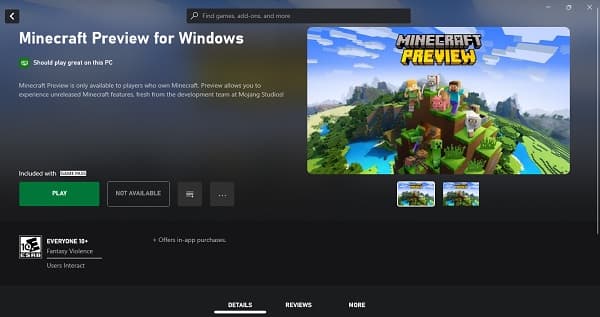
2. Then, right-click on your desktop and go to the “New” section of the menu. There, click on the “Shortcut” option. A new window will open.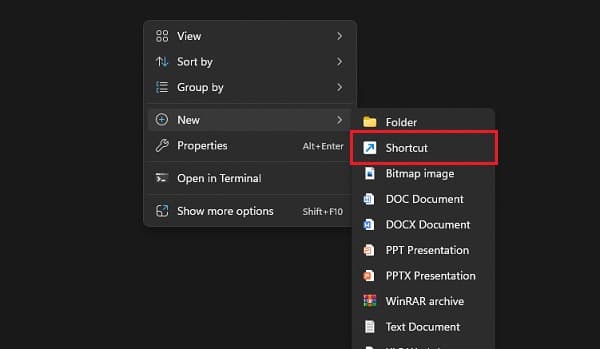
3. Next, in the location of the item, type the following command:
minecraft:?Editor=true
Then click on the “Next” button.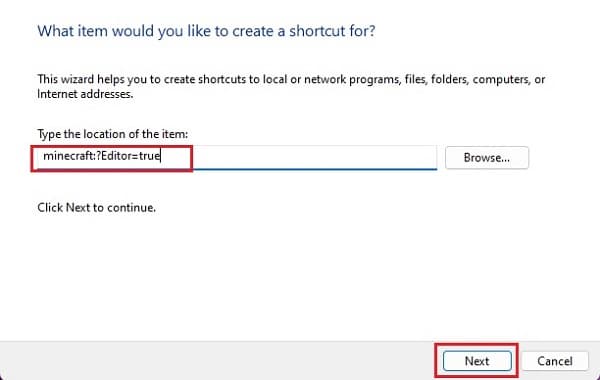
4. Finally, type “Minecraft Editor” in the name section of your shortcut and click on the “Finish” button.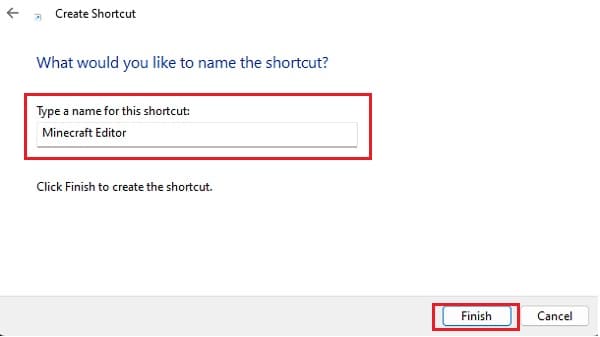
5. Once you are done, a new shortcut will appear on your desktop. Open it to launch Minecraft Bedrock Editor.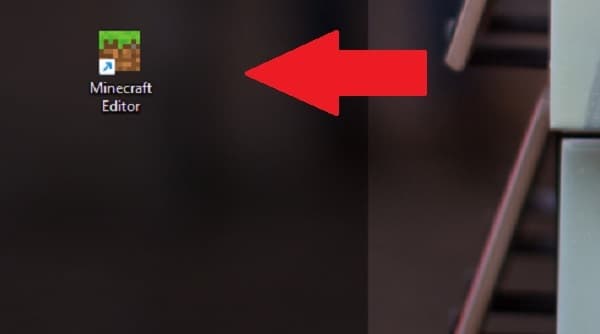
How to Use Minecraft Bedrock Editor Mode
Now that your Minecraft Bedrock Editor is up and running, let’s figure out how to make the most out of it. From world creation to editing everything in it, we are covering all the basic options of this editor in separate sections.
Create an Editor Project
Follow these simple steps to create a new project in the Minecraft Bedrock Editor:
1. As soon as the editor opens, you will be greeted with a project section. Click on the “Create New Project” button.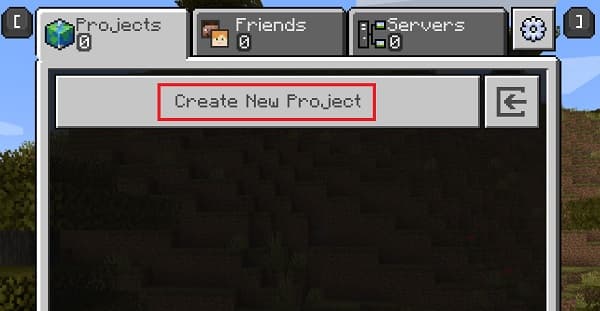
2. Then choose your world options including as you would while creating a world in the main game. Click on the “Create” button when you are done.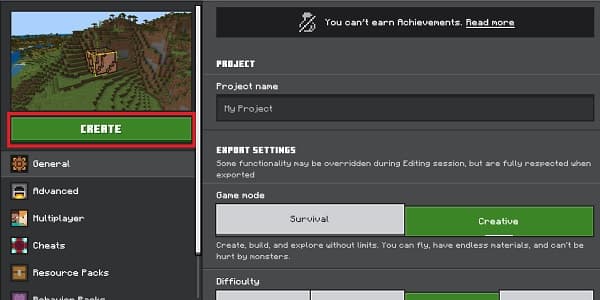
3. Finally, the new world will load and the editor will show you a welcome message. You can read it to get some basic tips or close it to dive into the editor.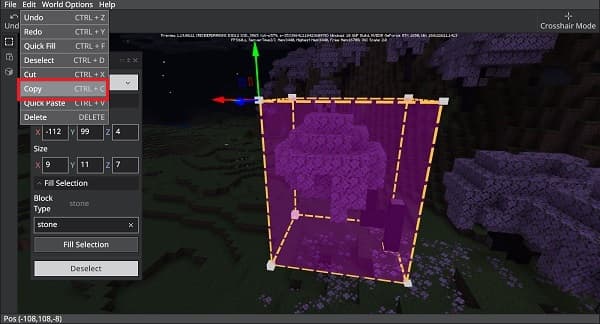
Basic Options
When the editor first loads, you will see your world spawn point in the main window. Let’s figure out some of the basic options to explore the world:
- Movement: You can use the WASD keys to roam around your world and use the space and shift keys to move up and down respectively. The editor also has a “crosshair” mode in the top right corner which you can use for even easier movement.
- Camera: Right-click and move your mouse around to look around your Minecraft world in all directions.
- Selection: If you click on a block in the world it gets selected. Then, you can click and drag from its corner to expand the selection.
- World Options: You can click on the “World Options” in the top menu to toggle the daylight cycle, change dimensions, and pause or unpause mobs.
How to Copy and Paste in Minecraft Bedrock Editor
With the basic movements out, let’s try editing our Minecraft world. One of the easiest ways to do it is by making copies of already existing elements. Here’s how:
1. First, click on any block of the object you want to copy in the Minecraft Bedrock Editor. We will try to duplicate a cherry tree.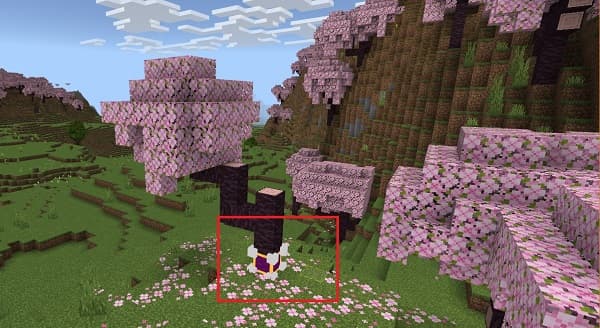
2. Then, click on each corner of the selected block. Three arrows pointing in different directions will show up. Click and drag on each arrow to expand the selection and cover the entire tree. You might have to move the camera with the movement keys.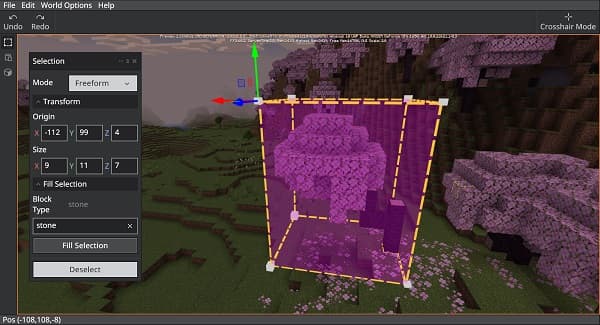
3. Then, press the “Ctrl + C” keys to copy the selection. You can also use the “copy” button in the edit menu as well.
4. Then, go to any other new spot in the same world. There, first, click on any surface block and then, press the “Ctrl + V” keys to paste the selection.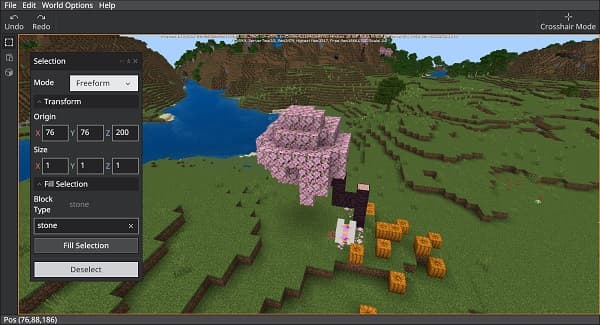
5. If you want to customize where the selection is pasted, the Minecraft Bedrock Editor also has a dedicated mode. Click on the “Paste mode” icon on the left side panel to open and use it. It will give you a bunch of options to modify the selection including its direction and location.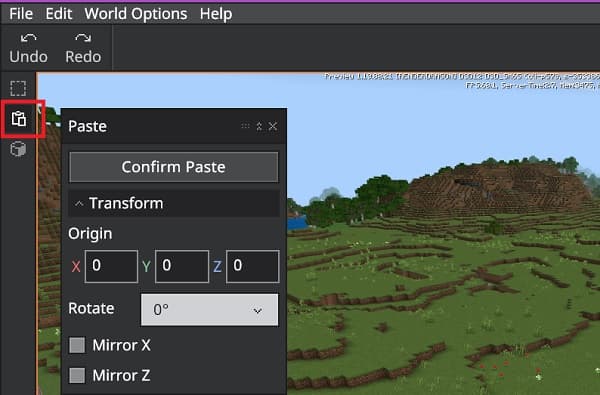
How to Place Blocks
Now that you know how to make copies of existing objects, it’s time now to create something from scratch. So, here’s how to place objects:
1. First, first click on a block and then use its corners to expand the selection. You can use an empty area or even a place that already has blocks in it.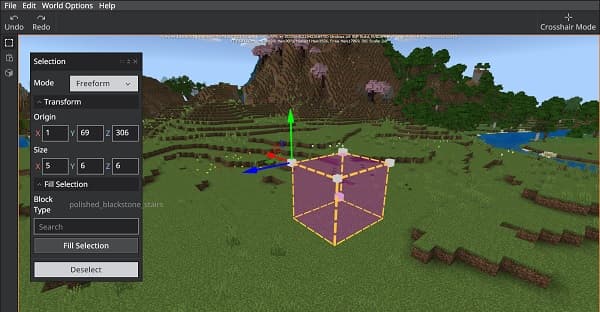
2. Next, make sure you are in the “Selection” mode on the left-side panel. Then, choose the block you want to place in the fill section. You can search for any type of Minecraft block with the search bar.![[Please provide the image for analysis.]](/_next/image?url=https%3A%2F%2Fwp.minerank.com%2Fwp-content%2Fuploads%2F2025%2F07%2Fblock20type20Minecraft20Bedrock20Editor.jpg&w=3840&q=75)
3. Finally, click on the “Fill Selection” button. The Minecraft Bedrock editor will immediately place your selected blocks in the selected area. Not to forget, you can use the options in the “Transform” section to customize the selected area as well.![[Please provide the image so I can generate the alt text.]](/_next/image?url=https%3A%2F%2Fwp.minerank.com%2Fwp-content%2Fuploads%2F2025%2F07%2FFill20Selection20Button.jpg&w=3840&q=75)
Use the Brush in Minecraft Editor
Last but not least, we also have a truly creative and open “brush” mode in the Minecraft Bedrock Editor. It allows you to freely draw and place blocks all around the world. Let’s figure out how to use it:
1. To begin, click on the “brush mode” icon on the left side panel or press the “Ctrl + B” keys.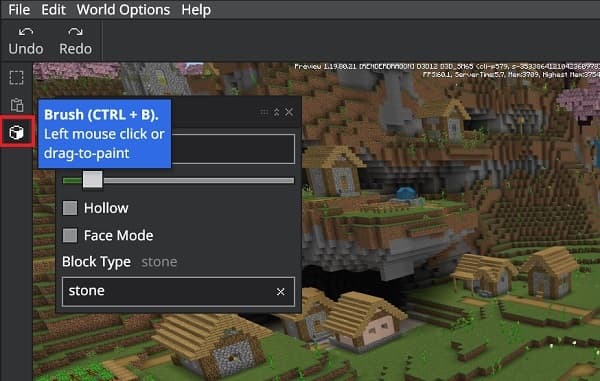
2. Then, choose the size and settings of your brush. The hollow option will ensure that the structure you paint is hollow on the inside. Meanwhile, the face mode allows you to paint blocks that are next to your selection which is useful in creating large structures like a hill or tower.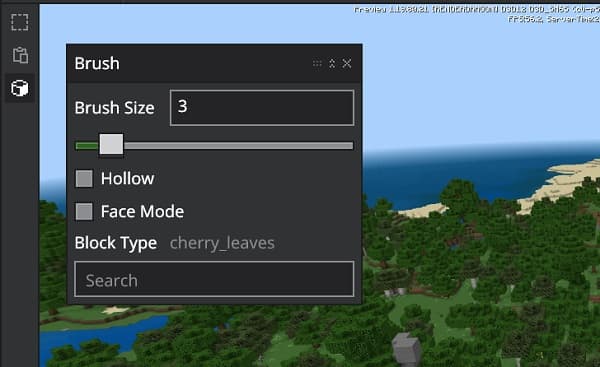
3. Finally, just click and drag your brush around the scene to fill it with your desired block. It is similar to painting in an image editor but you get to do it in a 3D Minecraft world.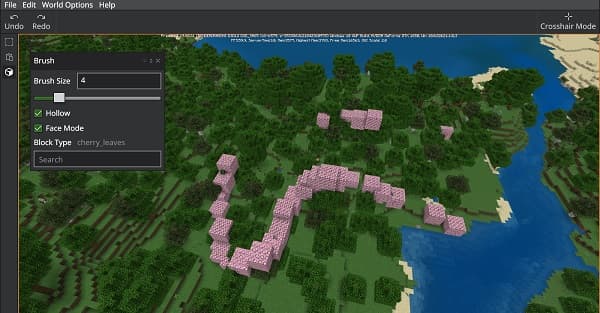
How to Export Your World from Minecraft Bedrock Editor
Once you are done playing and experimenting with your custom Minecraft world, it’s time to test it. To do so, simply go to the “File” menu in the top bar and then choose the “Export” option. It allows you to immediately export your project as a playable Minecraft world.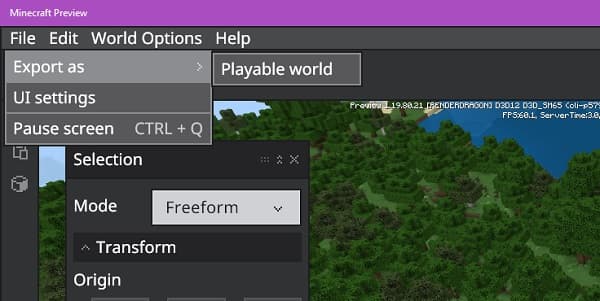
By default, the world will be saved as a .mcworld or .mcpack file within your Downloads folder. Then you just have to open the file and Minecraft will automatically load it as a playable world. You can even use the same file to create a custom Minecraft world or even a personal server. Who knows, your creation might end up becoming one of the best Minecraft survival servers.
Frequently Asked Questions
Is there a world editor for Minecraft Bedrock?
The Bedrock Editor is a powerful tool that allows you to edit the world of Minecraft in a very powerful way.
Does Minecraft Editor work with Java edition?
The Minecraft Bedrock Editor, as the name suggests, is exclusive to Bedrock users. However, you can use the popular WorldEdit mod to get similar functionality on the Java edition.
When is Minecraft Editor coming out?
We currently don’t have an official date for the Minecraft Bedrock Editor’s release. But, instead of waiting, you can use our guide and Minecraft Preview app to test it before the official release.
How to Download Minecraft Bedrock Editor?
The Minecraft Editor comes built-in with the Minecraft Preview app. You just need to download the latest version of the Minecraft Preview and use the above-mentioned steps to unlock the editor.
Download and Use Minecraft Bedrock Editor Today
With that, you are now ready to create, edit and completely change your world with the Minecraft Bedrock Editor. But before you dive into it, we suggest you try some of the best Minecraft texture packs as well. The editor supports them flawlessly and you can combine the two to create a truly unique Minecraft world. Though, if you are looking for some inspiration then the best Minecraft CityBuild servers might be a good place to start. They are home to some of the best builders out there and a powerhouse of creativity.

Udayveer Singh
Udayveer Singh is a contributor to our news feed here at Minerank and is passionate about all things Minecraft!